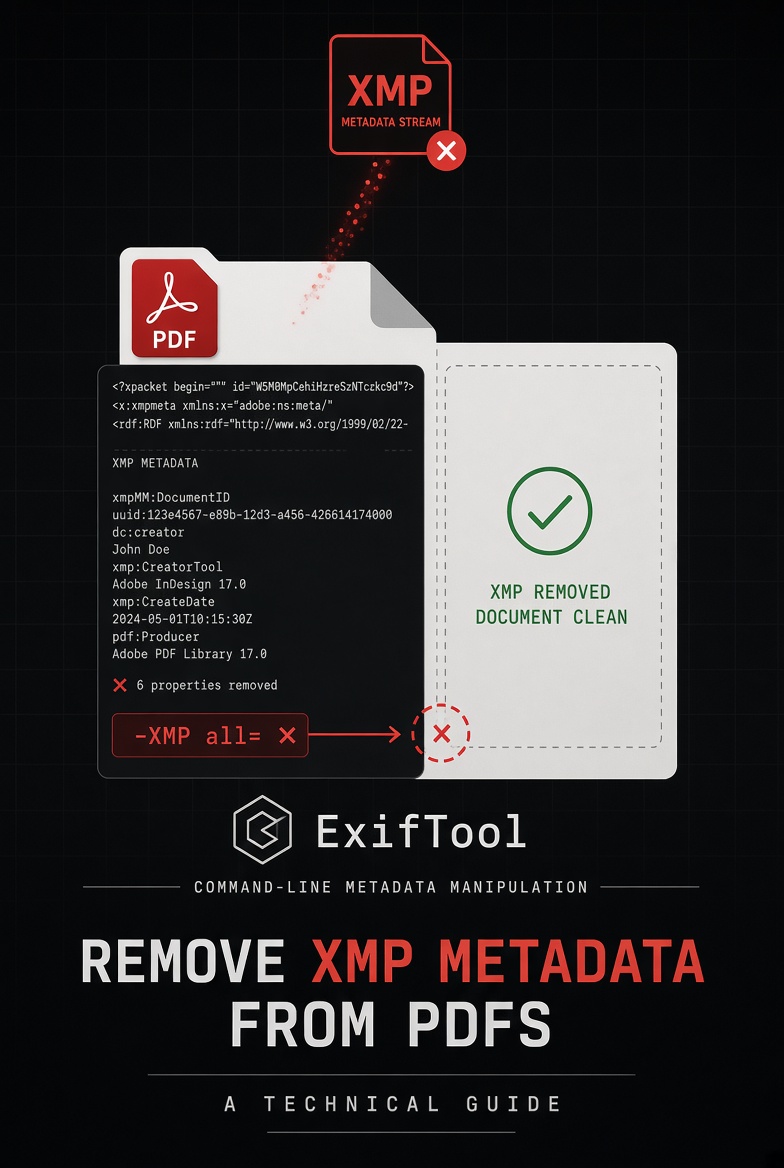
To remove XMP metadata from a PDF via command line: exiftool -XMP:all= document.pdf removes only the XMP stream. exiftool -all= document.pdf removes both the XMP stream and the Info dictionary simultaneously. Verify with exiftool -XMP:all document.pdf - no output means the stream is gone.
If XMP metadata persists after using another tool, that tool only cleared the Info dictionary. The XMP stream requires explicit targeting.
I've tested this myself: take a freshly exported Word-to-PDF document, run it through a popular online metadata remover, then check with ExifTool. The Author field vanishes from Acrobat's Properties panel. Clean, right? Then run exiftool -XMP:all document.pdf. Your name is still there. The creation date is still there. The software version is still there. The online tool removed the Info dictionary and left the XMP stream completely untouched.
This happens with most tools. It's not a bug - it's a scope limitation. Fixing it requires understanding why two metadata stores exist in the same file and how to target both.
#1. What XMP metadata actually is - and why it's separate
PDF files have carried metadata since version 1.0. The original mechanism - the Info dictionary - is a simple key-value block embedded near the PDF's cross-reference structure. Author, Creator, Producer, dates. That's what Acrobat's Properties panel reads. That's what most people mean when they say "PDF metadata."
In 2001, Adobe introduced the Extensible Metadata Platform (XMP) - an XML-based metadata standard that gets embedded as a separate stream within the PDF file body. XMP carries the same fields as the Info dictionary, plus additional namespace-specific fields that the Info dictionary can't hold. It became part of the ISO 32000 PDF standard. Every PDF exported from a modern application - Word, Google Docs, InDesign, Canva - now carries both.
The two stores are independent. Clearing the Info dictionary does not affect the XMP stream. Clearing the XMP stream does not affect the Info dictionary. A complete clean requires explicitly targeting both. Most tools, APIs, and scripts that process "PDF metadata" were written before XMP became ubiquitous - and never updated to handle it.
The XMP stream in a PDF is literally an embedded XML document. If you open a PDF in a text editor and search for <x:xmpmeta, you'll find it. Everything between the opening and closing tags is your metadata, stored in plain readable XML, invisible in the document but accessible to anyone running ExifTool, pdfinfo, or any modern PDF parser.
#2. What survives after a partial clean - real ExifTool output
This is the section that makes this guide different from every Stack Overflow answer on the topic. Here's what a "cleaned" PDF actually looks like when you inspect both stores.
Author : [empty]
Creator : [empty]
Producer : [empty]
# But exiftool -XMP:all shows:
XMP:Creator: Jane Smith
XMP:CreateDate: 2026:09:14
XMP:ModifyDate: 2026:10:01
XMP:Tool: Microsoft Word
Author : [empty]
Creator : [empty]
Producer : [empty]
# And exiftool -XMP:all shows:
# (no output)
XMP stream: cleared
Info dict: cleared
Both stores: verified
The left panel is a real pattern - not a cherry-picked edge case. It represents the majority of online "metadata removal" tools and many desktop applications that advertise metadata cleaning but only process the Info dictionary.
#3. Method 1 - ExifTool command line (recommended)
ExifTool by Phil Harvey is the gold standard for metadata manipulation. It's free, open source, cross-platform, and used by digital forensics professionals worldwide. Critically, it is one of the few tools that explicitly targets both the Info dictionary and the XMP stream in a single operation.
Install it first:
$ brew install exiftool
# Verify installation
$ exiftool -ver
12.76
# Fedora / RHEL
$ sudo dnf install perl-Image-ExifTool
# Arch
$ sudo pacman -S perl-image-exiftool
PS> winget install -e --id OliverBetz.ExifTool
# Option 2: download installer from exiftool.org/install.html
# Option 3: Chocolatey
PS> choco install exiftool
The core commands
$ exiftool -all= document.pdf
# ── Remove ONLY the XMP stream (keep Info dict) ──
$ exiftool -XMP:all= document.pdf
# ── Remove specific XMP fields (keep others) ──
$ exiftool -XMP:Creator= -XMP:CreateDate= -XMP:ModifyDate= document.pdf
# ── Remove and overwrite original (skip the _original backup) ──
$ exiftool -all= -overwrite_original document.pdf
# ── Batch: remove XMP from all PDFs in current folder ──
$ exiftool -all= -overwrite_original -ext pdf .
# ── Batch: process folder recursively ──
$ exiftool -all= -overwrite_original -r -ext pdf ./documents/
By default, ExifTool creates a backup with _original appended (e.g. document.pdf_original) before modifying the file. This is intentional and useful. Add -overwrite_original to skip the backup and write directly. For batch operations on documents you're certain about, -overwrite_original keeps the folder clean. For individual sensitive documents, let the backup exist until you've verified the output.
Understanding the flags - what each one actually does
| Flag | What it removes | XMP stream cleared? | Info dict cleared? |
|---|---|---|---|
-all= | All writable metadata - both Info dictionary and XMP stream | ✔ Yes | ✔ Yes |
-XMP:all= | All XMP namespace fields - leaves Info dictionary untouched | ✔ Yes | ✖ No |
-PDF:all= | PDF Info dictionary fields only - leaves XMP stream untouched | ✖ No | ✔ Yes |
-Author= | Author from Info dictionary AND XMP:Creator simultaneously | ~ Partial (creator only) | ✔ Yes |
-XMP:Creator= | Only the XMP dc:creator field - leaves all other XMP fields | ~ Partial | ✖ No |
No command line? Use the browser tool instead
Removes XMP stream and Info dictionary. Nothing uploaded. Works on any OS.
#4. Method 2 - QPDF for structural removal
ExifTool removes metadata fields but does not rewrite the PDF file structure. Incremental updates - appended edit sessions - remain in the file body even after ExifTool runs. QPDF linearises and rewrites the complete PDF structure, which eliminates incremental update history alongside standard metadata removal.
The combination of QPDF and ExifTool is the most thorough free approach for complete sanitisation:
# Mac: brew install qpdf | Linux: sudo apt install qpdf | Windows: choco install qpdf
# Step 1: Rewrite PDF structure (removes incremental updates)
$ qpdf --linearize input.pdf temp-rewritten.pdf
# Step 2: Strip all metadata from the rewritten file
$ exiftool -all= -overwrite_original temp-rewritten.pdf
# Step 3: Verify XMP stream is cleared
$ exiftool -XMP:all temp-rewritten.pdf
# No output = XMP stream is gone
# Step 4: Verify incremental updates are gone
$ grep -c "%%EOF" temp-rewritten.pdf
# Should return 1 - one %%EOF means no incremental updates
# Rename to final output
$ mv temp-rewritten.pdf output-clean.pdf
#5. Method 3 - Browser tool (no installation)
For professionals who need XMP removal without command-line access - on a client machine, on a Chromebook, or in a workflow that doesn't permit software installation - the browser-based approach is the practical alternative.
FileIntel's PDF Metadata Remover uses pdf-lib to process files locally in the browser. The file never leaves your device. The tool applies three passes: setter methods on the Info dictionary fields, direct deletion from the trailer dictionary, and full XMP stream removal. The output file is available for download within seconds.
For compliance or audit purposes: the browser processing means nothing is transmitted - you can verify this by opening DevTools → Network tab while the tool runs. Zero outbound requests carry your file content.
#6. Which tools fail to remove XMP - and why
#7. The verification workflow - the step everyone skips
Running a removal command is not the same as confirming it worked. This is the step that distinguishes a proper XMP removal from a false clean. Run these checks in order after any removal operation.
Run this single command to check both stores simultaneously after any removal operation:
exiftool -Author -Creator -Producer -Keywords -ModifyDate -CreateDate -XMP:all document.pdf
If this returns nothing at all - no field names, no values - both the Info dictionary and the XMP stream are clean.
#8. XMP-specific fields that have no Info dictionary equivalent
The XMP stream carries fields that don't exist in the Info dictionary. These are invisible to Acrobat's Properties panel and to any tool that only checks standard metadata. They persist after partial cleans and can identify a document, its history, and its origin in ways that Info dictionary fields cannot.
| XMP field | What it contains | Why it matters |
|---|---|---|
xmpMM:DocumentID | A UUID that stays consistent across saves - links different versions of the same document | Two proposals with the same DocumentID came from the same template. Forensic linkage even after content changes. |
xmpMM:InstanceID | Changes on every save - a unique fingerprint for this specific file version | Confirms whether a file you received matches the original or was re-saved before being sent. |
xmp:MetadataDate | When the metadata itself was last written - often seconds after ModDate | Reveals if metadata was re-processed after the document was modified. A MetadataDate after ModDate is unusual. |
xmpMM:History | Edit history entries including software used and timestamps for each save (Adobe Creative Suite especially) | Visible record of every application that touched the document. |
dc:rights | Copyright or rights statement | May contain organisation name or internal rights codes. |
xmp:CreatorTool | Specific software version string - e.g. "Microsoft Word for Microsoft 365 (16.0.17231)" | More specific than the Info dictionary Creator field. Reveals exact software version for CVE targeting. |
The xmpMM:DocumentID field is the one that surprises most security researchers when they first encounter it. It means that if you use the same Canva template for multiple client proposals and never strip XMP, any recipient who compares DocumentIDs across documents can prove they were produced from the same source. In a competitive proposal context, that's not information you chose to share.
#9. When XMP removal doesn't work - real limitations
Honest tools and guides state their limits. Here are the scenarios where standard XMP removal fails or creates new problems.
Digitally signed documents. The XMP stream is part of the signed content. Removing it invalidates the digital signature - the signature will show as invalid in Acrobat. If you need both a clean document and a valid signature, strip metadata first, then sign. Stripping after signing is a one-way process that destroys the signature.
Password-protected PDFs. ExifTool cannot modify encrypted PDFs without the owner password. If you receive a password-protected document and need to strip its XMP, you need the owner password - not just the user/open password. Without it, ExifTool will report the file as encrypted and skip modification.
Forensic residue in file slack space. ExifTool removes metadata fields but does not rewrite the file. Deleted metadata may leave residual data in areas of the file not covered by the cross-reference table. This is addressable only by QPDF linearisation or Acrobat Sanitize Document, both of which perform a complete rewrite. For most professional purposes, ExifTool removal is sufficient. For forensic evidence contexts, use the QPDF + ExifTool combination.
Printer tracking dots. Completely outside the scope of XMP removal. If a document was printed and scanned, the resulting PDF is an image-based file with different metadata characteristics. The original printer may have embedded microscopic tracking dots in the print output that are part of the image, not the PDF metadata layer. ExifTool cannot detect or remove these.
XMP in embedded objects. A PDF may contain embedded images, files, or forms that carry their own XMP metadata. ExifTool's -all= flag targets the document-level XMP. Embedded objects may have their own metadata stores that require separate extraction and cleaning. For documents with complex embedded content, use Adobe Acrobat Pro's Sanitize Document which addresses embedded objects alongside the document XMP.
FileIntel's PDF Metadata Remover is designed to remove metadata from both the Info dictionary and XMP stream. However, no metadata removal tool can guarantee complete removal across all PDF versions, configurations, and embedded content types. For documents entering legal proceedings or federal submissions, verify the output with ExifTool and consider Acrobat Pro's Sanitize Document for maximum assurance. See our complete metadata removal guide for the full verification workflow.
Remove XMP metadata from your PDF now
Both Info dictionary and XMP stream. Free, browser-only, nothing uploaded. 10 seconds.
#10. Frequently asked
exiftool -XMP:all= document.pdf removes only the XMP stream. exiftool -all= document.pdf removes both the XMP stream and the Info dictionary. Verify with exiftool -XMP:all document.pdf - no output confirms the XMP stream is gone. Add -overwrite_original to skip creating a backup file.-all= flag removes all writable metadata from both the Info dictionary and the XMP stream in one operation. After running it, verify with exiftool -XMP:all document.pdf - if no output is returned, the XMP stream was cleared. ExifTool removes metadata fields but does not perform a full file rewrite - use QPDF before ExifTool if you also need to eliminate incremental update history.exiftool -XMP:all document.pdf and still see fields, the tool you used did not address the XMP stream. Use ExifTool with -all= or -XMP:all= to specifically target it.brew install exiftool. Then run exiftool -all= -overwrite_original document.pdf. Verify with exiftool -XMP:all document.pdf - no output confirms success. macOS Preview does not remove XMP metadata - it adds its own Producer metadata when you save. The browser-based method at fileintel.me/pdf-metadata-remover also removes XMP without any installation.Tool limitations: ExifTool removes metadata fields from both the Info dictionary and XMP stream but does not perform a complete file rewrite. Incremental update history, embedded object metadata, and forensic residue in file slack space require QPDF linearisation or Acrobat Sanitize Document for complete elimination. Verify all removal operations with ExifTool before sharing sensitive documents. No tool can guarantee complete removal across all PDF versions and configurations.